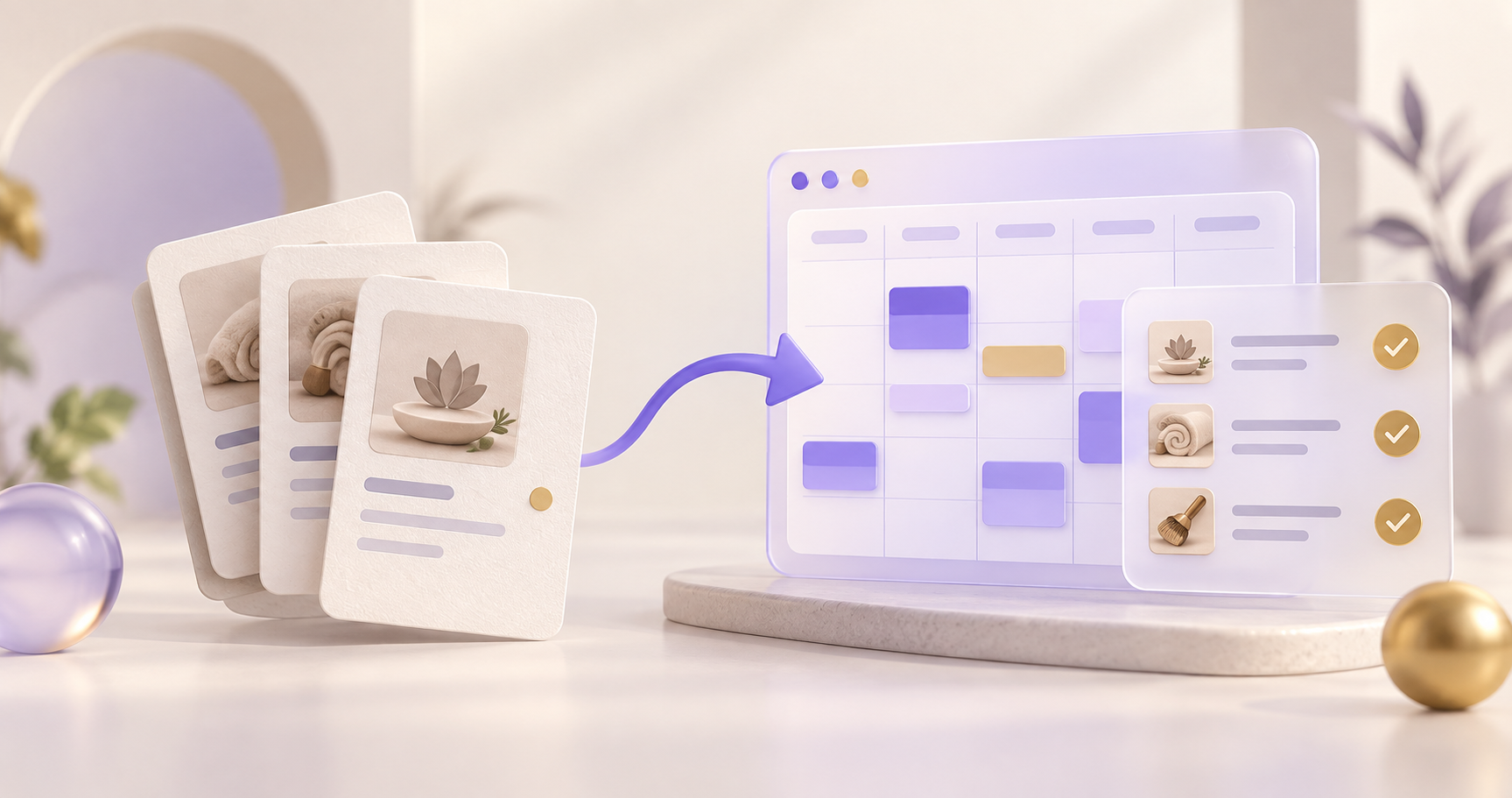
Start with what you already have
You don’t need to rebuild your business from a blank page. Bring your website and public booking link to your personal walkthrough. We’ll help you plan the move, review your services, and work through the details before you go live.
You can keep your existing website. When you’re ready, point its booking button to Scheduley or use the booking widget. A new website is optional.
Platforms: automatic imports and help with switching
We can help you assess a move from your current platform. The route depends on what its public booking page exposes and what records you need to bring over.
- Public service-menu import: GoCheckin, Booksy, GlossGenius, and Goldie (HeyGoldie) have dedicated readers. Review every result: menus, locations, and pricing options vary by business.
- Other salon and appointment platforms: Square Appointments, Vagaro, Fresha, Booker, Mindbody, Mangomint, Boulevard, Phorest, Squire, Schedulicity, STX Cloud, Zenoti, DaySmart Salon, Shortcuts, Resurva, SimplyBook.me, Acuity Scheduling, Wix Bookings, and MyTime. Share your link so we can check the best setup path. Automatic menu import is not guaranteed for these platforms.
- Trades and front-desk tools: Jobber, Housecall Pro, ServiceTitan, AI Frontdesk, and GoHighLevel. Talk through your services, booking rules, and workflow with our team before switching. A public menu scan does not transfer jobs, conversations, or automations.
Don’t see your provider? Contact our team with its name and your public booking link. If a page cannot be read automatically, we’ll help you identify what needs to be entered or reviewed manually.
1. Add your website and booking link during setup
Choose the website-import path during onboarding and enter your existing website. If customers book on another site, open Have a separate booking link? and add that URL too. Use the link customers visit, rather than your provider’s admin or sign-in page.
Click Find my details. Scheduley looks for public business details, hours, and services. If you have several locations, use the page for the location you’re setting up.
2. Review your details and menu
Confirm your business name, address, phone, hours, and logo. You can replace or remove an imported logo. Check each service’s name, category, duration, and price against your original menu before saving.
- Missing values: fill in anything marked for review. A page loading successfully does not mean every service was imported.
- Starting prices and quotes: the original price wording appears beside the service. Confirm the price you want to save; an unknown price is not treated as a free service.
- Categories and variants: categories group your services. Review similarly named services and different price or duration options so you keep the right versions.
- Add-ons and processing time: review these separately. Importing a name or category does not automatically recreate dependencies, packages, or processing-time rules.
3. Add anything the first scan missed
Use Did we miss anything? to scan another public booking or service-menu link. Review the proposed additions and changes before applying them. This service-menu step leaves your business details and hours as they are.
If the source is blocked, requires sign-in, or does not expose its menu, you’ll see a warning. Keep your original menu available and ask our team for help completing the setup. You can also edit services later under Business.
What does not transfer through a website scan?
A website scan imports public setup information, not your entire account. It does not automatically move client records, appointment history, future bookings, job history, payment cards, memberships, gift-card balances, or message history. Tell our team which records you need before making a switch; we’ll confirm what is possible and what needs separate handling. An export file is not a guarantee that every field can be imported.
4. Check your schedule, then switch your booking links
Before publishing, confirm your services, staff availability, existing commitments, and booking rules. Take a test booking and, if you’re using the AI receptionist, make a test call. Existing bookings on your old platform are not automatically synchronized by the import.
Once the new setup is ready, update your website, social profiles, and other booking links. Keep access to your previous records until you’ve checked the transition. See publishing and sharing your booking page.
Get help with your move
Book a personal walkthrough or email our team. Support is available daily, 7 AM–8 PM Pacific. Send your website, public booking link, current provider, and the details you want to move so we can help you choose the next step.